> For the complete documentation index, see [llms.txt](https://documentation.opencrvs.org/llms.txt). Markdown versions of documentation pages are available by appending `.md` to page URLs; this page is available as [Markdown](https://documentation.opencrvs.org/technical/guides/installation/deploy-set-up-a-server-hosted-environment/create-a-github-environment.md).
# Create a Github environment
#### Before you begin
In this section you will run the `yarn environment:init` script in **your forked infrastructure repository** which will help you to configure OpenCRVS environments. This command:
* Creates GitHub environments
* Drafts commands to bootstrap new servers
* Prepare inventory files for ansible for environment provision
* Prepares Helm chart values for deployment
GitHub environments will host all secrets and variables required for successful infrastructure configuration (users, filesystem, kubernetes cluster, etc) and OpenCRVS deployment.
Make sure you completed environment preparation steps and have all required information:
| Property | Description |
| -------------------------------------------------------------------------------------- | ------------------------------------------------------------------------------------------------------------------------------------------------------------------------------------------------------------------------- |
| GitHub Organisation | Own GitHub organisation with Team subscription. |
| Country config repository | Refer to [Quick Start](/technical/guides/installation/local-development/quick-start.md) |
| Virtual machines (servers) created | [Preparation steps: ](/technical/guides/installation/deploy-set-up-a-server-hosted-environment/preparation-steps.md)Verify you have IP addresses or DNS names for each environment and you are able to login on those VMs |
| Domain names are registered | Verify [DNS](/technical/guides/installation/deploy-set-up-a-server-hosted-environment/preparation-steps/configure-dns.md) names are pointed to appropriate IP addresses of VMs. |
| SSL Certificates issued or one of the available Let’s Encrypt is considered to be used | [Advanced Topics > TLS/SSL Config for Traefik](/technical/guides/installation/advanced-topics/tls-ssl-configuration-for-traefik.md) |
| Infrastructure repository forked | Refer to [Quick Start](/technical/guides/installation/local-development/quick-start.md) |
| GitHub Token with full code access and workflow permissions created | Personal access token (Fine grained token) with access to Country config and Infrastructure repositories. Refer to [Quick Start](/technical/guides/installation/local-development/quick-start.md) |
| DockerHub Account, token and repository are created | Make sure Country config image was built and pushed to DockerHub |
| Users with their public keys to grant remote access to the servers | Refer to [Advanced Topics > SSH access](/technical/guides/installation/advanced-topics/ssh-access.md) |
| SMTP server configured | Refer to [Setup Infrastructure](/technical/guides/installation/deploy-set-up-a-server-hosted-environment/preparation-steps/setup-infrastructure.md) |
| Optionally Third-party accounts created (slack, etc) | Refer to [prerequisite accounts](/technical/guides/installation/deploy-set-up-a-server-hosted-environment/preparation-steps/create-prerequisite-accounts-and-repositories.md) |
### Create github environments
Environments are managed by `yarn environment:init` script. The script will create files that must be pushed to Git, so it is **advisable to run the script in a new branch in order to open a pull request.**
Re-run script for each environment:
* development and (or) qa
* staging
* production
{% hint style="info" %}
*Migrating from an earlier version? ... Read the* [*Migration from Docker swarm guide.*](/technical/guides/installation/deploy-set-up-a-server-hosted-environment/migration-from-docker-swarm-guide.md)
Configuring a **staging** or **prodution** Github environment requires you to have a **backup server** environment in place.
No explicit **backup** *Github* environment is created by this script anymore as of OpenCRVS v2.0.
{% endhint %}
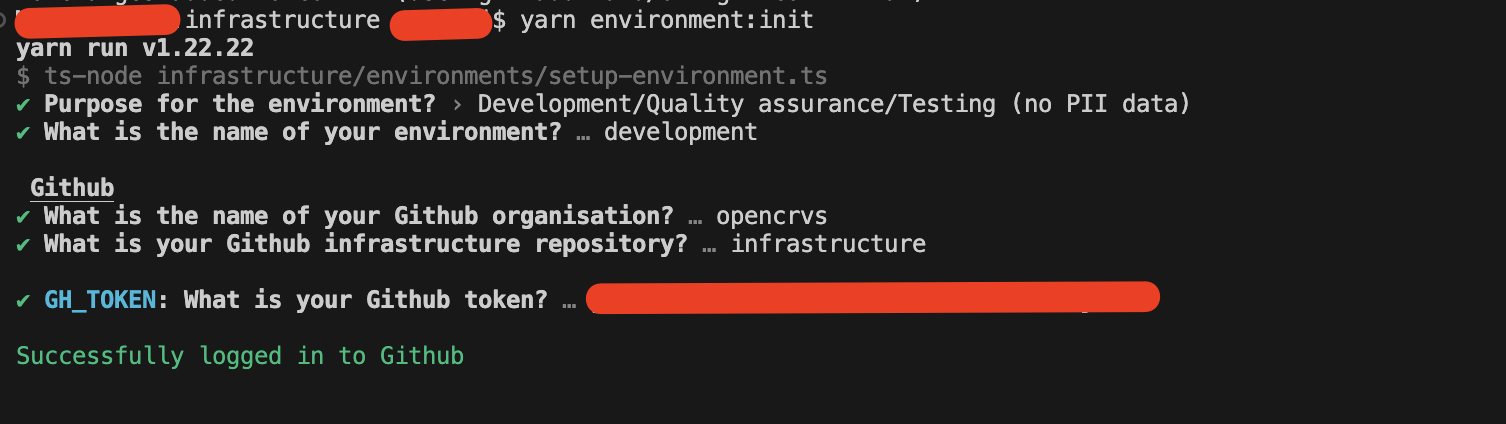
To run the script, open terminal window and cd into your **forked infrastructure repository** and run the following command to start the configuration wizard:
yarn install
yarn environment:init
{% hint style="info" icon="triangle-exclamation" %}
You may notice that the same commands exist in an **infrastructure** folder in **forked countryconfig repo** but these exist only for backwards compatibility, e.g. OpenCRVS v1.8 or below and **should no longer be used**. Older installations should follow the [*Migration from Docker swarm guide*](/technical/guides/installation/deploy-set-up-a-server-hosted-environment/migration-from-docker-swarm-guide.md)
{% endhint %}
You will be asked to provide values to configure key OpenCRVS components. Some actions can be automated and the script will guide you to the next steps.
#### Environment management commands
The `yarn environment:*` scripts in the infrastructure repository run the `opencrvs` command line tool shipped with the `@opencrvs/toolkit` package (version `2.1.0`):
| Command | Runs | Purpose |
| ----------------------------------- | --------------------------------------- | ------------------------------------------------------------------------------------------------------------------------- |
| `yarn environment:init` | `opencrvs environment init` | Create or update a GitHub environment, its secrets and variables, Ansible inventory and Helm chart values |
| `yarn environment:upgrade` | `opencrvs environment upgrade` | Upgrade the repository layout of existing environments to the current version (see below) |
| `yarn environment:users` | `opencrvs environment users` | Manage SSH users in the Ansible inventory, see [SSH access](/technical/guides/installation/advanced-topics/ssh-access.md) |
| `yarn environment:update-workflows` | `opencrvs environment update-workflows` | Refresh the "Target environment" dropdown in all GitHub Actions workflows from the `environments/` folder |
| `yarn environment:swarm-to-k8s` | `opencrvs environment swarm-to-k8s` | Used by the Docker Swarm to Kubernetes migration |
{% hint style="warning" %}
**Upgrading from v2.0?** Ansible inventory files have moved from `infrastructure/server-setup/inventory/.yml` to `environments//inventory.yml`, so each environment is self-contained in its own folder. `yarn environment:init` refuses to run while the old layout exists. Run `yarn environment:upgrade` once first: it moves every inventory file to its new location and updates the environment lists in the workflows.
{% endhint %}
### Environments init script questions
#### Intro questions
**Purpose for the environment?**
The script will ask you to select the type of environment that you wish to create:
```
? Choose a name and purpose for the environment?
❯ Development
Quality assurance (no PII data)
Staging (hosts PII data, no backups)
Production (hosts PII data, requires frequent backups)
Other...
```
Depending on your anwer different logic will be executed and some features might be not available. For example Approval workflow work only on environments with PII data.
**What is the name of your environment?**
Environment name is used later to create Kubernetes namespaces and other configuration objects like backup and restore folders. Environment name is read only property.
We recommend you use following pre-configured environment names:
* development
* qa
* staging
* production
**Enable two-factor authentication (2FA)?**
The script asks whether to enable two-factor authentication for user login: `? Enable two-factor authentication (2FA)? (Y/n)`
The default answer follows the **purpose** of the environment:
* Environments that host PII data (`staging`, `production`, or any custom environment created with the "Staging/Production" purpose) default to **Yes**.
* Environments without PII data (`development`, `qa`, or any custom "Development/QA/Testing" environment) default to **No**.
With 2FA enabled, login requires a real verification code delivered by email or SMS. With it disabled, login accepts the fixed test code `000000` — convenient for development, but it means a password alone grants access, so **never disable 2FA on an environment that holds real citizen data**.
{% hint style="warning" %}
Enabling 2FA requires working email/SMS delivery on that environment. With `TWO_FA_ENABLED=true`, the pre-deploy validation fails if `SMTP_HOST`/`SMTP_PORT` are missing, and the post-deploy validation fails if SMTP is unreachable or `SENDER_EMAIL_ADDRESS`/`ALERT_EMAIL` are unset. Configure email delivery before deploying a production or staging environment — see [Running validation checks](/technical/guides/installation/deploy-set-up-a-server-hosted-environment/deploy/running-validation-checks.md).
{% endhint %}
#### GitHub
**What is the name of your Github organisation?** Type your organisation.
*Note that for personal repositories organisation is your GitHub login.*
**What is your Github infrastructure repository?** Repository name where your infrastructure code lives.
**What is your Github token?** Classic or Fine-grained token with access to infrastructure workflows and code.
Once you provide answers to the questions script will connect GitHub:
* If environment doesn't exist, script will continue it's execution
GitHub environment doesn't exist
* If environment exists, script will fetch information about existing secrets and variables for particular environment and repository.
GitHub environment already exists
* The script will fail if it cannot connect to Github for whatever reason.
For environments with PII data script will ask you to answer additional questions:
* `GH_APPROVERS`: Comma separated list of GitHub accounts responsible for Reviews and Approvals on OpenCRVS GitHub Actions workflows. This variable is defined at repository level.
* `APPROVAL_REQUIRED`: Require approval for particular environment. This variable is defined at environment level.
**It is strongly recommended to Approval requirement in production environments to mitigate the risk of accidental deployments or environment resets, which may lead to the deletion of citizen data.**
Configure production environment with required approval
#### Docker Hub
The script will ask for your Dockerhub credentials or skip if they already exist. GitHub doesn't allow you to fetch secret values so you will not be able to check the current value, only updating the value is possible.
DockerHub credentials were created earlier
#### Kubernetes & Runtime
The script will ask you to provide Kubernetes and Runtime options:
* `DOMAIN`: Domain name to expose the OpenCRVS application frontend and APIs. It will be the domain after the subdomains that you configured when setting DNS.
* `KUBE_MASTER_NODE`: IP address of the Kubernetes master node inside the cluster. Worker nodes and firewall rules use it to reach the master, and it is the Kubernetes API advertise address. Leave empty to use the IP address of the master node's default network interface. If the master node has more than one network interface, set it to the private IP address (see the warning below).
* `KUBE_API_HOST`: IP address or domain name to expose the Kubernetes API, for example a VPN-facing address. Provision script will generate Kubernetes config files for each user defined in users section of inventory file, pointing to this address, and adds it to the Kubernetes API server certificate. Leave empty to use `KUBE_MASTER_NODE`.
* `KUBE_API_ALLOWED_CIDRS` : Comma-separated list of CIDR ranges allowed to access the Kubernetes API, in addition to the cluster nodes. Leave empty to allow access from the cluster nodes only.
* `KUBE_WORKER_NODES`: Comma separated list of additional Kubernetes cluster members (Virtual Machines). Leave empty for a single node setup. Worker nodes can be added later. Default: no worker nodes.
{% hint style="warning" %}
**If the master node has more than one network interface, set `KUBE_MASTER_NODE` to its private IP address**, the one on the network it shares with the worker nodes. Setting only `KUBE_API_HOST` is not enough.
This is common with cloud providers, where each server has a public IP address and a private network for traffic between servers. If `KUBE_MASTER_NODE` is left empty or set to the public IP address, the cluster registers the master with its public address. The firewall on each worker then only allows that address, but the master connects to the workers from its private address, so that traffic is blocked. Pods keep running, but commands such as `kubectl logs` and `kubectl exec` fail for pods on worker nodes with an error like:
```
dial tcp 10.1.0.6:10250: i/o timeout
```
To find the right address, run `ip route get ` on the master node. The `src` value in the output is the address to use for `KUBE_MASTER_NODE`.
You can still expose the Kubernetes API on another address, for example the public IP address, by setting `KUBE_API_HOST` and `KUBE_API_ALLOWED_CIDRS`.
{% endhint %}
{% hint style="info" %}
The values of `KUBE_MASTER_NODE`, `KUBE_API_ALLOWED_CIDRS` and `KUBE_WORKER_NODES` are used to generate the firewall configuration during provisioning, check [Ubuntu Firewall configuration](/technical/guides/installation/advanced-topics/ubuntu-firewall-configuration.md)
{% endhint %}
On screenshot access to Kubernetes API is limited to master node only.
#### SSH Users
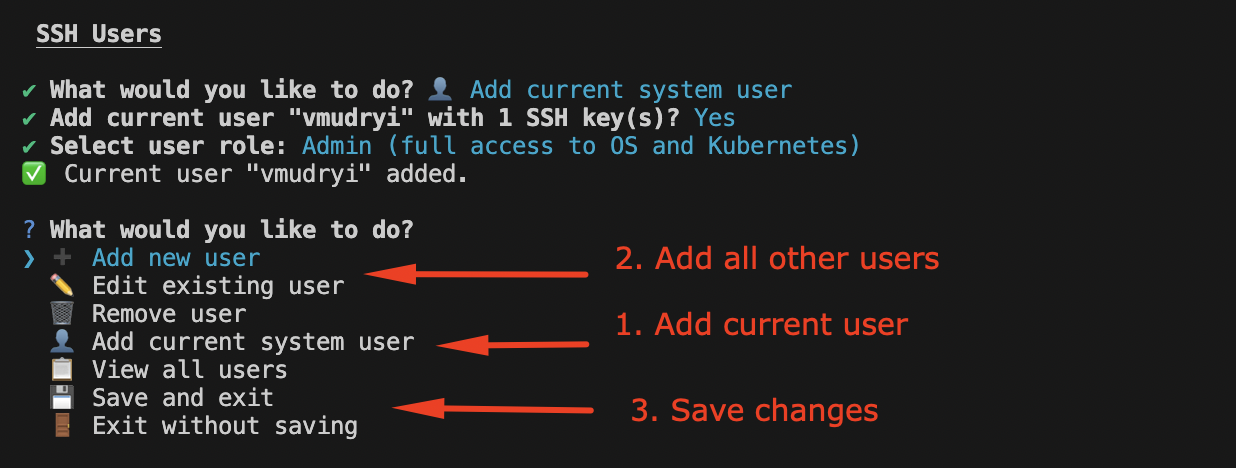
Script will ask you to create users with remote SSH access, answer following questions:
* User name: Remote user name to login
* Public ssh keys: Add public key(s) for remote login. Login by password is disabled by default, keys must be provided
* Role: User role on remote system
Check documentation for more examples and detailed instructions how to manage remote access: [Advanced topics > SSH Access](/technical/guides/installation/advanced-topics/ssh-access.md)
Once all the users are added, select **"Save & Exit"** in order to continue with the script.
#### Traefik SSL Certificate
Installation script does configuration for traefik helm deployment.
Following options are available at configuration time:
1. **Lets Encrypt certificate:** No additional input is required. The installation script will automatically configure Traefik to obtain and use Let’s Encrypt SSL certificates for you.\
**NOTE:** Your server must be accessible from the public internet for this process to work.\
This option is recommended only for testing and demonstration purposes, not for production environments.
2. **Static SSL certificate:** The script will prompt you to provide an SSL certificate and key for the frontend. The provided values will be securely stored as GitHub secrets.
3. **Custom configuration:** No additional questions will be asked. A preconfigured file (without the Let’s Encrypt section) is used, and Traefik will use its default certificate. Choose this option if you plan to configure Traefik yourself later using Helm chart values.
Questions for **Static SSL certificate**
* `SSL_CRT`: SSL Certificate or Certificate chain
* `SSL_KEY`: SSL Certificate private keys
Full documentation about traefik configuration can be found at:
* Official documentation page:
* [Advanced Topics > TLS/SSL Configuration for Traefik](/technical/guides/installation/advanced-topics/tls-ssl-configuration-for-traefik.md)
#### Storage
{% hint style="info" %}
**Only enable disk encryption if your data centre is equivalent to a Tier 2 or lower, where physical security may not be at its optimum.** If your data centre tier is higher, and extremely secure, there should be no need to encrypt the disk. **It is vital to safely store the encryption key** that is generated by the script to avoid loss of data. **Losing the encryption password is not recoverable.**
{% endhint %}
Disk Encryption: If disk encryption is enabled, provision GitHub Actions workflow will create encrypted file in the root (`/`) directory and mount it as `/data`. Disk encryption is optional. **Disk encryption can't be enabled later.**
* `DISK_SPACE`: Size of the encrypted `/data` volume in gigabytes, e.g. `200g`. Asked only when encryption is enabled. The volume is created on **every** node; to resize it later, see [Increase /data partition](/technical/guides/installation/advanced-topics/disk-space-management.md#increase-data-partition).
{% hint style="warning" %}
**Do not use all disk space for OpenCRVS.** Each node's root partition needs `DISK_SPACE` free, plus 50g or 10% of it (whichever is larger) for the OS.
{% endhint %}
Datastores run on the master by default; use `node_selector` to place them on other nodes and use their volumes. See [Move datastore storage](/technical/guides/installation/advanced-topics/disk-space-management.md#move-datastore-storage).
#### Backup
Its possible for this environment to back up its data to another server e.g. backup every night. **It is strongly recommended if you are provisioning a production environment to enable backup.**
* `BACKUP_HOST`: Backup server **IP address**. A hostname is not supported, because the Kubernetes network policy only allows backup jobs to connect to this IP address.
* `BACKUP_SERVER_USER`: User to connect to backup server. At this point you may choose any username, provision script will create user for you. E/g If you would like to use shared server to store backups from qa and production, you may want to have separate users for security reasons.
Script will add backup host to ansible inventory files and configure appropriate values for helm release. Script will create private/public key-pair for backup server user.
* `BACKUP_ENVIRONMENT_MODE`: Backup mode, `dump` (daily full database backup) or `differential` (weekly full, daily differential backup).
By default backup is configured to run at 01:00 AM by UTC, if you need to adjust backup schedule, override `backup.schedule` in `environments//dependencies/values.override.yaml`
Backup configuration
More information about backup server configuration can be found at [Backup and Restore](https://github.com/opencrvs/documentation/blob/master/v2.0.0/setup/3.-installation/4.4-opencrvs-maintenance-tasks/4.3.7-backup-and-restore) section.
#### Restore
Its possible for this environment to restore backed-up data from another environment every night. **It is strongly recommended if you are provisioning a staging (pre-prod/mirror) environment to enable restore.**
Restore configuration will ask you to provide the restore environment name from the existing environment list. **If the environment doesn't exist and will be created later, feel free to type future environment name here, but don't forget to create that environment BEFORE running OpenCRVS** [**dependencies**](/technical/guides/installation/deploy-set-up-a-server-hosted-environment/deploy/running-a-dependencies-deployment.md) **deployment.**
The script will then ask you to:
* Select the backup mode of the environment you restore from (`dump` or `differential`). It must match the `BACKUP_ENVIRONMENT_MODE` of that environment.
* `RESTORE_HOST`: **IP address** of the backup server to restore from. Restore jobs fail if this value is not set.
By default restore is configured to run at 00:00 AM by UTC, if you need to adjust the restore schedule, override `restore.schedule` in `environments//dependencies/values.override.yaml`
Restore configuration
#### Databases & monitoring
The script will proceed to ask you to set database and monitoring passwords. Strong passwords are suggested. It is advisable to accept the defaults presented to you.
* `KIBANA_USERNAME`: (Default: opencrvs-admin): Kibana user name
* `KIBANA_PASSWORD`: (Default: random value): Kibana password
Database and monitoring sections. In this example disk encryption is already enabled
#### Metabase admin
Metabase provides a public web interface to access an analytics editor.
* `OPENCRVS_METABASE_ADMIN_EMAIL`: Metabase Admin user (only emails are allowed)
* `OPENCRVS_METABASE_ADMIN_PASSWORD`: Metabase Admin password
Metabase configuratiob section
#### SMTP
At this point smtp server should be configured. If you are using third-party email providers like Sendgrid, please make sure that your OpenCRVS domain is in whitelist and issued credentials are correct.
* `SMTP_HOST`: Hostname or IP address of your smtp server
* `SMTP_PORT`: Port where smtp server is listening
* `SMTP_SECURE`: Use TLS for connection
* `SMTP_USERNAME`: Username or email used to authenticate as a email client on smtp server
* `SMTP_PASSWORD`: Password or API token depend on your email provider
* `SENDER_EMAIL_ADDRESS`: All emails will be sent with this email in sender field
* `ALERT_EMAIL`: Email address for alerting, this field is often used to integrate with Slack, Google Chart or any other corporate communication tool.
Email configuration
#### Review step
Once all questions are answered, the script will generate strong database passwords for all the database technologies used in OpenCRVS. It will display all the secrets that the script will create and ask you if you want to continue to create the environment on Github.
The script will slowly create the Github environment and upload all the secrets OpenCRVS requires to provision and deploy OpenCRVS from Github Actions. It will create Helm chart and values files ready for committing to your repository.
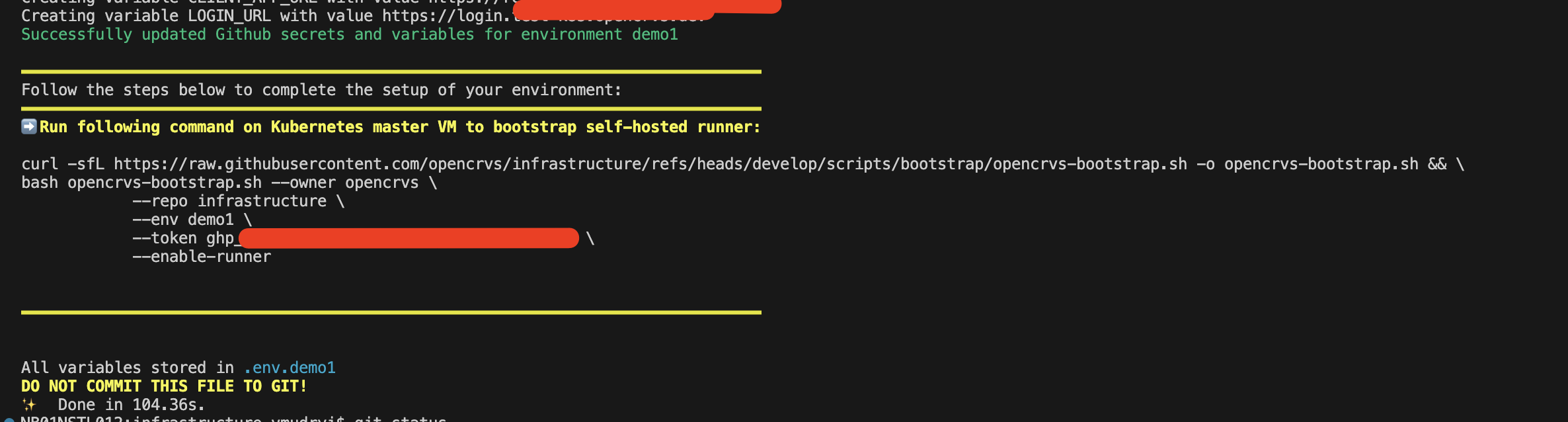
On the final step the script will provide a command to bootstrap a self-hosted runner on your server. **Save the command from script output to a temporal file, you will need it later**.
This is explained in the section [Bootstrap servers](/technical/guides/installation/deploy-set-up-a-server-hosted-environment/bootstrap-servers.md):
{% code title="Bootstrap command is automatically created ... " %}
```
curl -sfL https://raw.githubusercontent.com/opencrvs/infrastructure/refs/heads/develop/scripts/bootstrap/opencrvs-bootstrap.sh \
-o opencrvs-bootstrap.sh && \
bash opencrvs-bootstrap.sh --owner opencrvs \
--repo my-custom-infrastructure \
--env qa \
--token gh_PARSONAL_ACCESS_TOKEN \
--enable-runner
```
{% endcode %}
Command to bootstrap self-hosted runner on newly created virtual machine. Script will provide additional commands and hints for multi-node Kubernetes cluster and for configuration with backup server
Run following command on your infrastructure repository:
```
git status
```
You should get a number of files modified:
```
Changes not staged for commit:
(use "git add ..." to update what will be committed)
(use "git restore ..." to discard changes in working directory)
modified: .github/workflows/backup.yml
modified: .github/workflows/clear-all-data.yml
modified: .github/workflows/deploy-dependencies.yml
modified: .github/workflows/deploy-opencrvs.yml
modified: .github/workflows/github-to-k8s-sync-env.yml
modified: .github/workflows/provision.yml
modified: .github/workflows/reindex.yml
modified: .github/workflows/reset-2fa.yml
modified: .github/workflows/restore.yml
modified: .github/workflows/seed-data.yml
modified: .github/workflows/validate-opencrvs.yml
Untracked files:
(use "git add ..." to include in what will be committed)
environments/development/
```
Usually review is not required for files under the `.github` folder.
Review modified files:
* `environments//inventory.yml`: Configuration file for Ansible playbook responsible for server provision. For more information please follow hints inside file and [SSH Access](/technical/guides/installation/advanced-topics/ssh-access.md) section.
* `environments/`: Folder with `values.yaml` files for helm charts:
* `environments//traefik/values.yaml`: Traefik configuration, including SSL certificate handling. Please follow documentation under [TLS / SSL & DNS](/technical/guides/installation/advanced-topics/tls-ssl-configuration-for-traefik.md)
* `environments//opencrvs-services/values.yaml`: OpenCRVS configuration, **usually defaults are good for initial deployment**
* `environments//dependencies/values.yaml`: Datastores and monitoring configuration, **usually defaults are good for initial deployment**.
* `environments//opentelemetry/values.yaml`: OpenTelemetry Collector configuration. The collector receives traces from OpenCRVS services, Traefik and NGINX and forwards them to Elastic APM.
{% hint style="warning" %}
`values.yaml` files are generated and **overwritten every time you run** `yarn environment:init`. Put all your customisations in the `values.override.yaml` file next to each `values.yaml`, keeping the same YAML hierarchy. The script creates empty `values.override.yaml` files and never overwrites them. To remove a generated section, set its top-level key to `null` in `values.override.yaml`.
{% endhint %}
The generated values apply a hardened default configuration: Kubernetes network policies deny all traffic between namespaces except between `opencrvs-` and `opencrvs-deps-` (see [Kubernetes Network Policy](/technical/guides/installation/advanced-topics/kubernetes-network-policy.md)), OpenTelemetry tracing is enabled, and `OPENCRVS_ENVIRONMENT` is set to the environment name.
### Final notice
{% hint style="danger" %}
The later [provision](/technical/guides/installation/deploy-set-up-a-server-hosted-environment/provisioning-servers.md) script will disable password SSH access for all users on the server and create new users from the `environments//inventory.yml` file. After provisioning, SSH will only be possible using public/private key pairs.
{% endhint %}
{% hint style="success" %}
Users will be required to use Google Authenticator to SSH in after [provisioning](/technical/guides/installation/deploy-set-up-a-server-hosted-environment/provisioning-servers.md). This 2FA approach is an important step to secure your infrastructure.
{% endhint %}
{% hint style="danger" %}
If any user is utilising the 1000 group, the script will fail. Modify your available user groups on the server to ensure this one is available.
{% endhint %}
{% hint style="danger" %}
This script prints your environment's secrets and variables directly to your terminal. Copy them into a secure place or password manager such as [Bitwarden](https://bitwarden.com/) or [1Password](https://1password.com/) immediately, as they will not be shown again. **YOU MUST NEVER SHARE THESE VALUES, NOR PASTE THEM SOMEWHERE THEY COULD BE COMMITTED TO GIT!!!**
{% endhint %}
You will notice that an environment now exists in your Github repo containing all the secrets required.
{% hint style="info" %}
If you made a mistake and wish to run the script for this environment again, you must delete the environment on Github by clicking the trash icon first. **The environment and all secrets will be deleted and recreated, enforcing you to start over.**
{% endhint %}
**Repeat the process for all your required environments, e.g. qa, production, staging ...**
Once all environments are setup, feel free to continue.
---
# Agent Instructions
This documentation is published with GitBook. GitBook is the documentation platform designed so that both humans and AI agents can read, navigate, and reason over technical content effectively. Learn more at gitbook.com.
## Querying This Documentation
If you need additional information that is not directly available in this page, you can query the documentation by asking a question.
Perform an HTTP GET request on the following URL with the `ask` and `goal` query parameters:
```
GET https://documentation.opencrvs.org/technical/guides/installation/deploy-set-up-a-server-hosted-environment/create-a-github-environment.md?ask=&goal=
```
`ask` is the immediate question: it should be specific, self-contained, and written in natural language.
`goal` is what the user is ultimately trying to achieve, the reason they need the answer. Sharing it helps GitBook give you a better, more relevant answer. A goal is most helpful when it describes the outcome the user wants rather than restating the question. For example, with `ask=how do I create an API token`, a goal like `automate deployments from our CI pipeline` lets GitBook tailor the answer to that use case.
The response will contain a direct answer to the question and relevant excerpts and sources from the documentation.
Use this mechanism when the answer is not explicitly present in the current page, you need clarification or additional context, or you want to retrieve related documentation sections.
%20(1).png)
.png)


.png)
.png)
.png)
.png)
.png)